Add Flickr to your website

ADD FLICKR TO YOUR WEBSITE

In order to add Flickr to your website, follow these easy steps:


STEP 1:

Click on the Social Media button and select the Flickr icona in order to add this to your page and apply:

Adding Flickr to your website

STEP 2:


Once your Flickr icon appears on your page, right click and select properties:
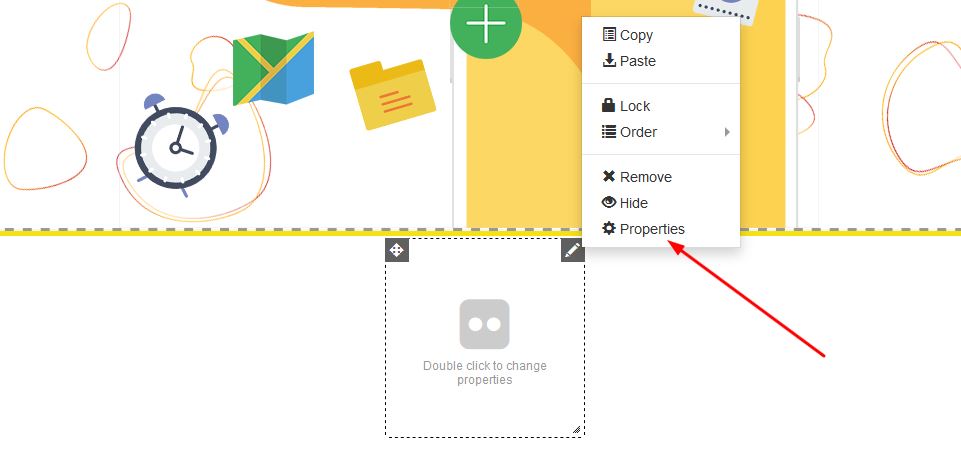

Adding Flickr to your website


STEP 3:

Under Properties, add your Flickr account under the general section and click on apply:
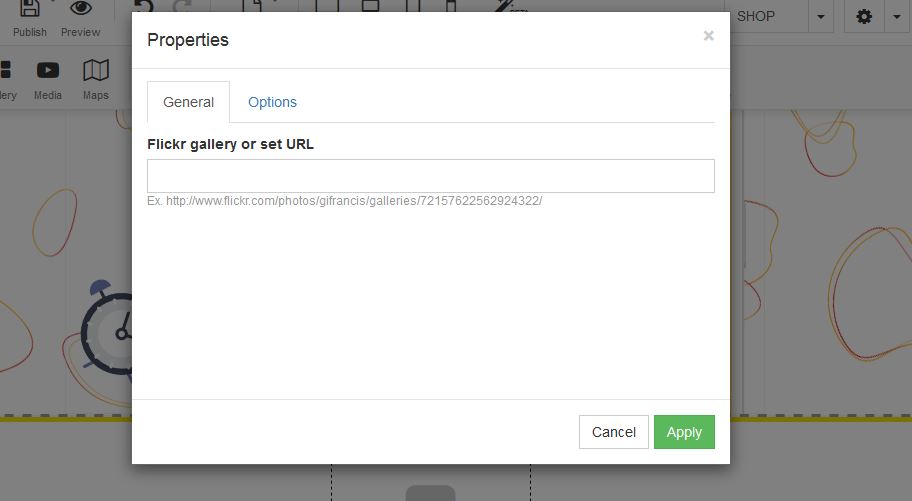
 Adding Flickr to your website

  • 1 Users Found This Useful
Was this answer helpful?

Related Articles

How to add blocks to your website

ADD A BLOCK TO YOUR WEBSITELearn how to add a black to your website with our step by step...

How to create an online shop

CREATE  YOUR OWN ONLINE SHOPAdd your online shop to your website is easy and very exciting. With...

How to add Pinterest to your website

ADD PINTEREST TO YOUR WEBSITEIn order to add a Pinterest to your website, follow these easy...

Add Skype to your website

ADD SKYPE In order to add Skype to your website, follow these easy steps:STEP 1:Click on the...

How to view your emails

How to login to your emails. 1. Login to your FWBuilder2. Click on Manage website3. Your products...
