How to add Olark to your website

ADD A WEBSITE BANNER

Make your business human by using live chat software for sales, marketing and customer support on your website. Start talking to your customers today!
In order to add Olark to your website, follow these easy steps:

STEP 1:

Click on the advanced section:
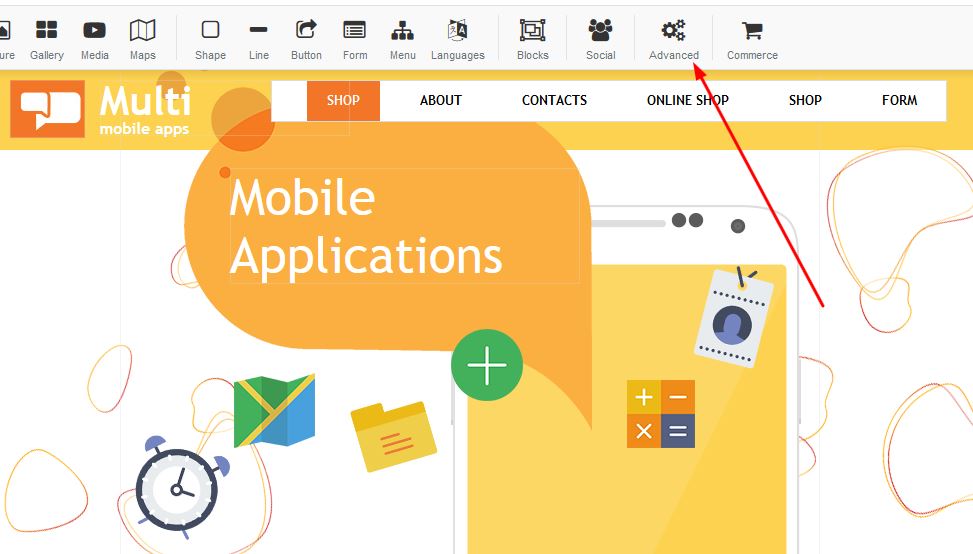
Adding Olark to your website

STEP 2:

Select the Olark button and press apply:
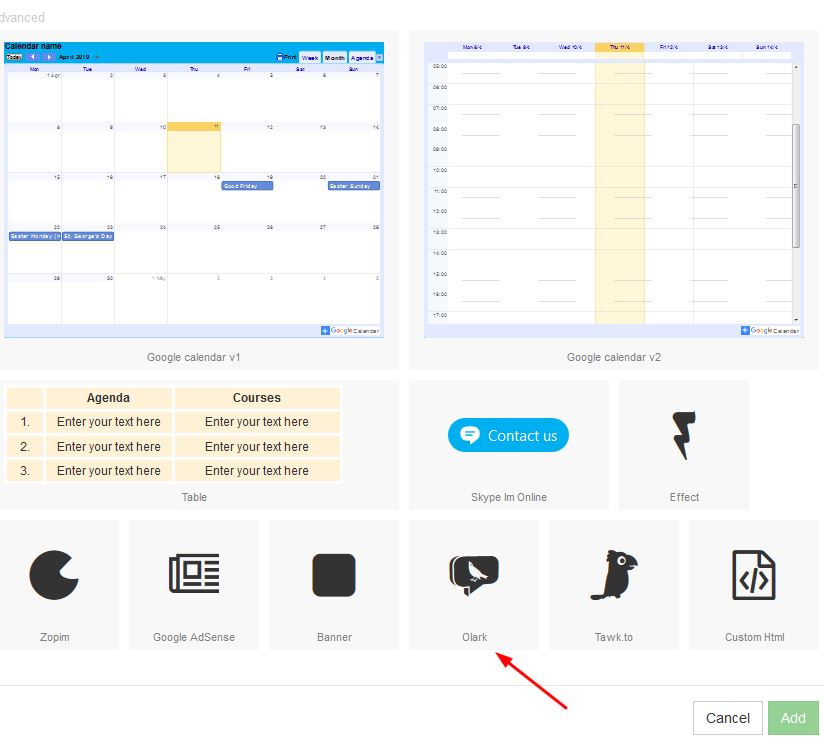
Adding Olark to your website

STEP 3:

A box will appear on your page which you are able to move to the desired area on your page.
Right click and select properties:


Adding Olark to your website
STEP 4:

Under Site ID - Add your Olark ID and click on apply:
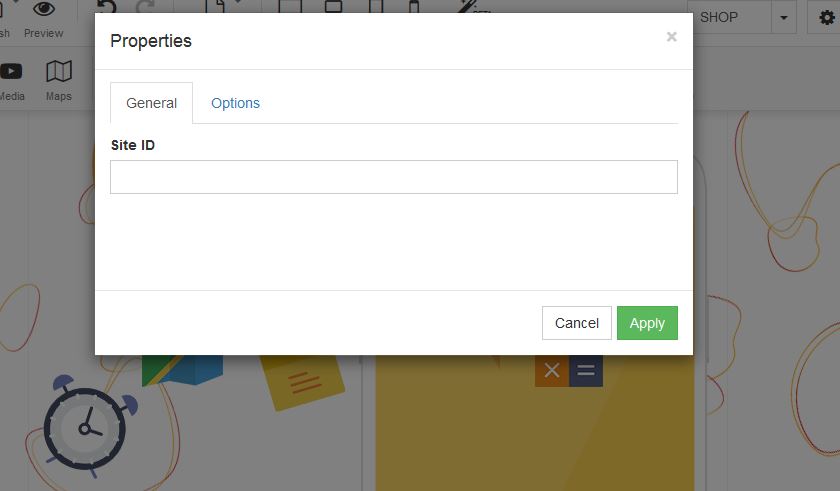
Adding Olark to your website


  • 2 Users Found This Useful
Was this answer helpful?

Related Articles

How to add Pinterest to your website

ADD PINTEREST TO YOUR WEBSITEIn order to add a Pinterest to your website, follow these easy...

Create a New Page

Create a new website page1. Right click on the navigation menu and select "Edit Menu"   2....

How to add a youtube video

Adding Youtube: Drag the youtube link to your desired page on your builder.In order to add a...

Adding Instagram to your website

ADD INSTAGRAM In order to add Instagram to your website, follow these easy steps:STEP 1:Click on...

How to add text

Text: Drag the text box to your page and place this exactly where you would like to have this.You...
