How to add a Calendar to your webis

ADD A CALENDAR TO YOUR WEBSITE:

In order to add a calendar to your website, follow the steps below:


STEP 1:

In order to add a calendar to your website, click on advanced:
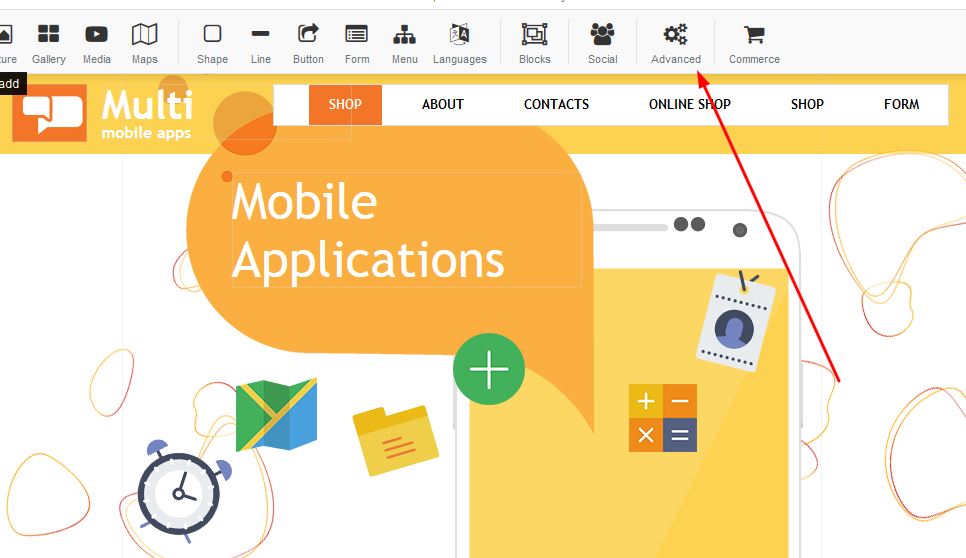

Adding a google calendar to your website
STEP 2:

Once you have been redirected to the advanced block, select the type of calendar you would like to have displayed on your page:
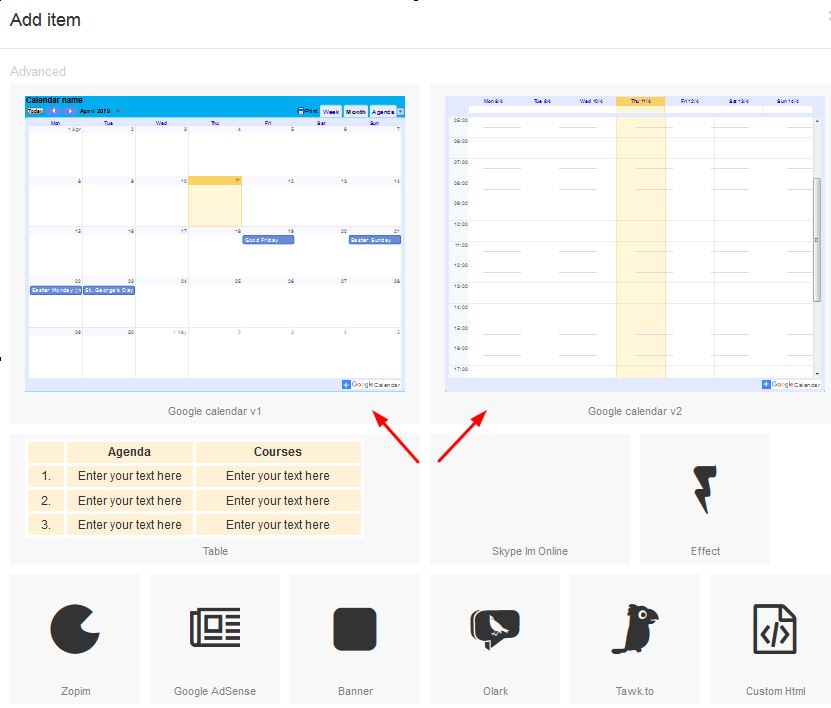
Adding a google calendar to your website


STEP 3:

One you select your choice of calendar, right click and select properties:
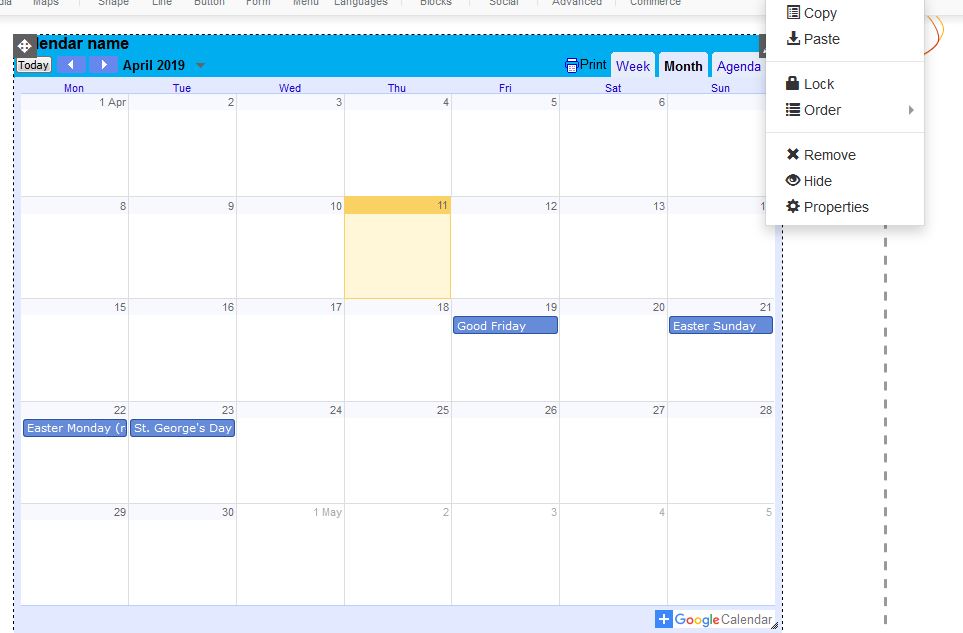

Adding a google calendar to your website


STEP 4:

Under Properties, add your Google Calendar ID in the field. Under Calendar Name, you can type in the name of your choice for this specific calendar. 
For more details on Google Calendar visit: https://developers.google.com/calendar/v3/reference/calendarList/get

Language: Select the language of your choice
Time Zone: Select your time zone (SA time zone is advisable)
First Day: Select the first day you would like to see on you calendar
Customize the calendar with backgrounds by selecting the pencil icon and apply to see the changes:
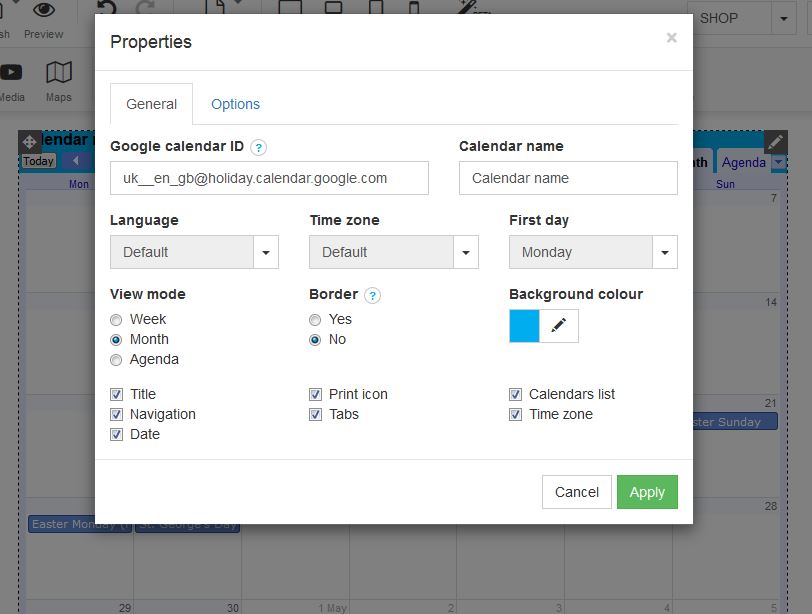


Adding a google calendar to your websitel


  • 4 Users Found This Useful
Was this answer helpful?

Related Articles

Adding a Gallery to your website

ADDING A GALLERY TO YOUR WEBSITEThere are a few options for gallery inserts which you will be...

Adding Instagram to your website

ADD INSTAGRAM In order to add Instagram to your website, follow these easy steps:STEP 1:Click on...

How to add blocks to your website

ADD A BLOCK TO YOUR WEBSITELearn how to add a black to your website with our step by step...

Add Skype to your website

ADD SKYPE In order to add Skype to your website, follow these easy steps:STEP 1:Click on the...

How to add Olark to your website

ADD A WEBSITE BANNERMake your business human by using live chat software for sales, marketing and...
