How to add media to your website

ADD MEDIA TO YOUR WEBSITE

In order to add media to your website, follow the steps below:

STEP 1:

Click on the media icon in order to add media to your page:
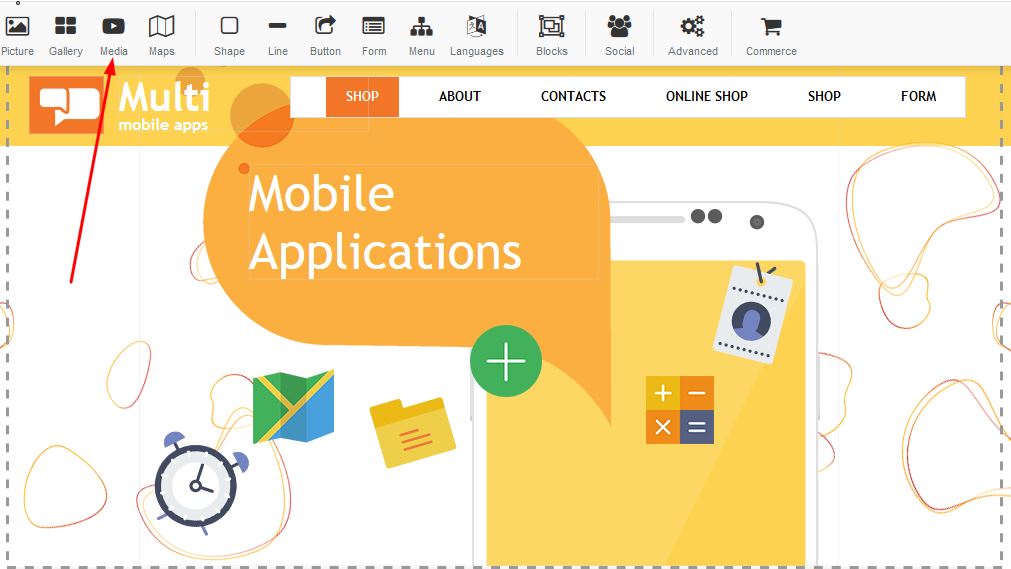

Adding Media to your website


STEP 2:

A block will appear with a few options - select your choice of media E.g Youtube, Vimeo, Youku or Media Player:
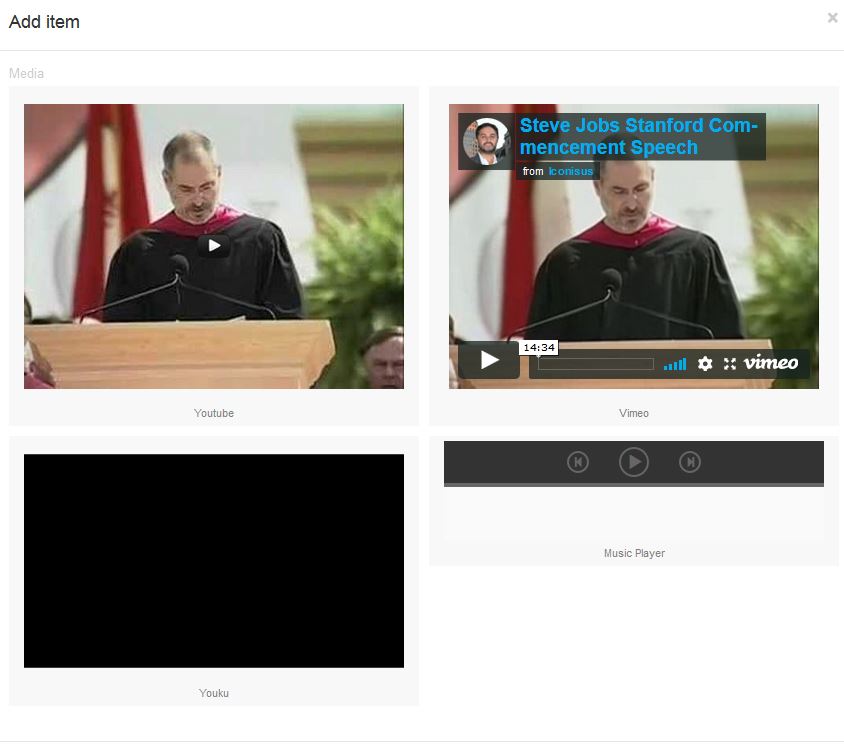
Adding Media to your website

STEP 3:

For Youtube: Right click and select properties.
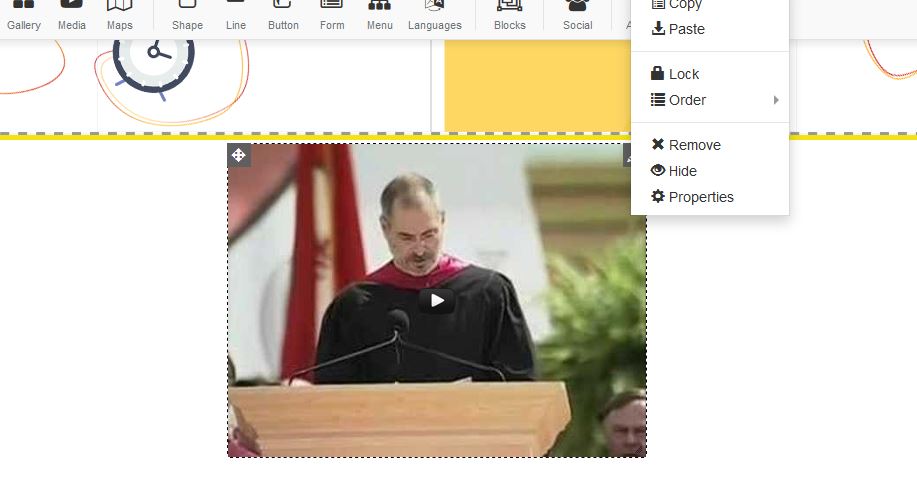

Adding Media to your website

STEP 4:

A box will appear for properties, under the Youtube URL - Add your URL for the video you wish to have displayed on your page:
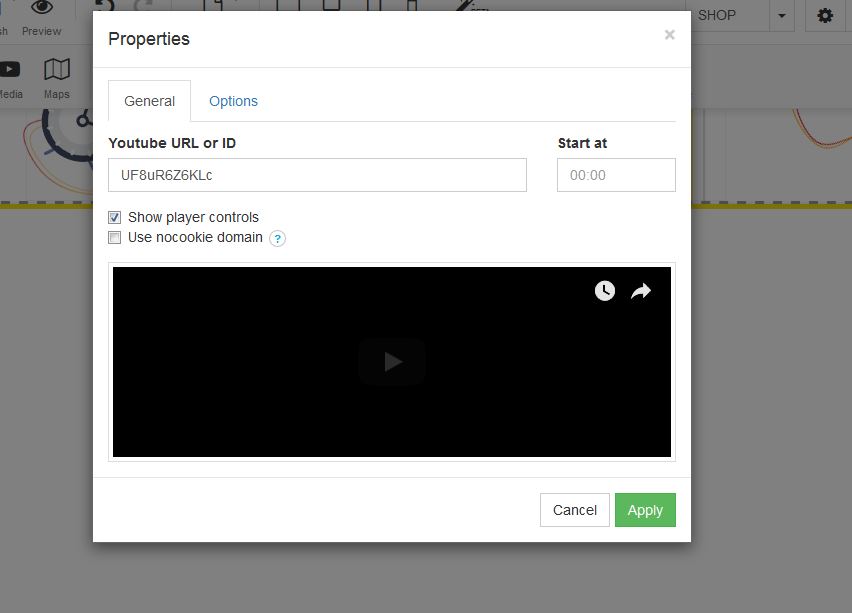

Adding Media to your website

STEP 5:

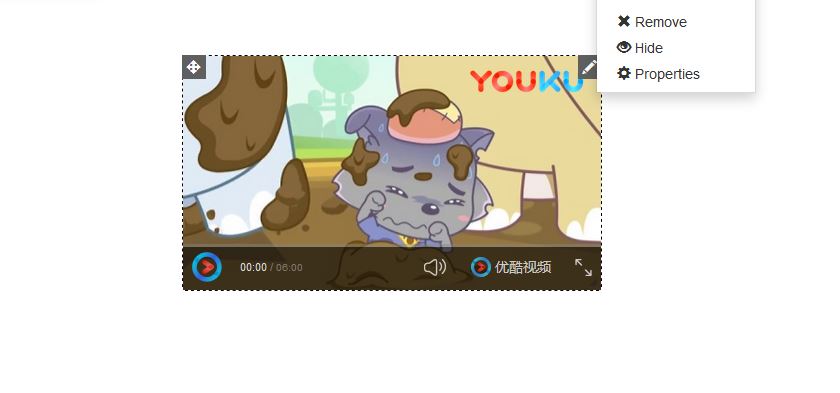
For Youku: Right click and select properties.
A box will appear for properties, under the URL - Add your URL for the video you wish to have displayed on your page:
Adding Media to your website

STEP 6:

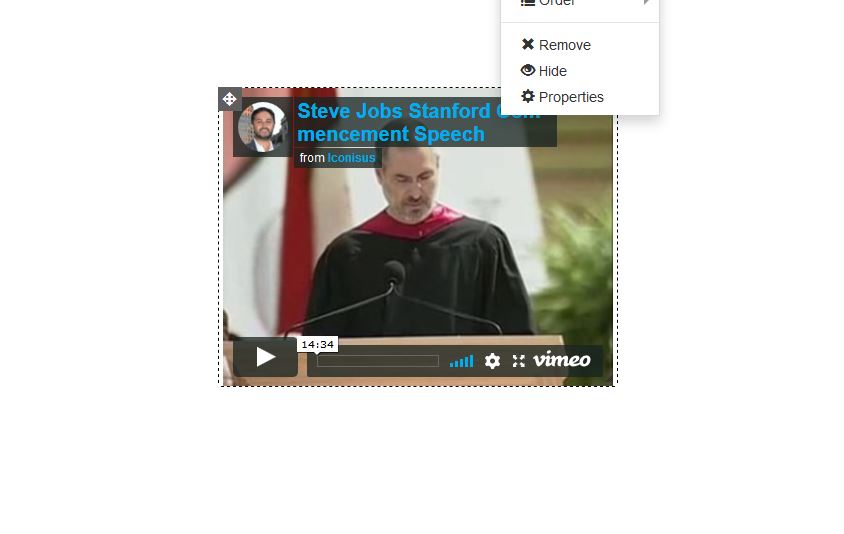
For Vimeo: Right click and select properties.
Adding Media to your website

STEP 7:

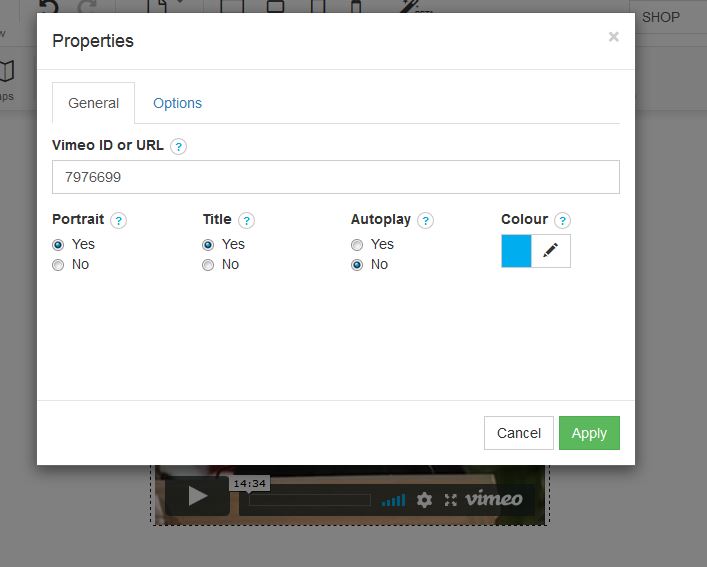
A box will appear for properties, under the URL - Add your URL for the video you wish to have displayed on your page:

Adding Media to your website

STEP 8:

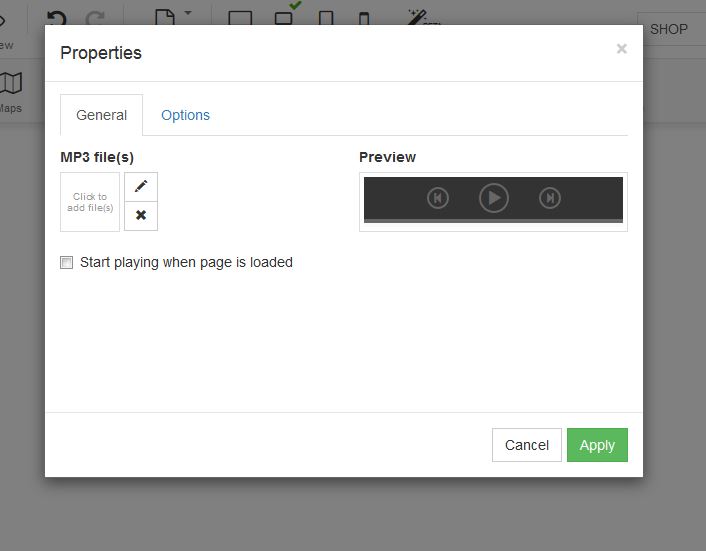
Mp3 players: Under properties a box will appear - upload your video under Mp3 files:
Adding Media to your website


  • 2 Users Found This Useful
Was this answer helpful?

Related Articles

Create a New Page

Create a new website page1. Right click on the navigation menu and select "Edit Menu"   2....

Adding a page to your website

ADD A PAGE TO YOUR WEBSITEIn order to add a page to your website, follow these easy steps:STEP...

How to add text

Text: Drag the text box to your page and place this exactly where you would like to have this.You...

How to upgrade your account

How to upgrade you current package1. Login to your FWBuilder2. Click on Manage Websites3. Under...

How to add blocks to your website

ADD A BLOCK TO YOUR WEBSITELearn how to add a black to your website with our step by step...
