HOW TO ADD A FAVICON
A favicon is an icon associated with a particular website, typically displayed in the address bar of a browser accessing the site or next to the site name in a user's list of bookmarks.
Follow the steps below in order to create your own favicon for your website:
STEP 1:
Click on the setting drop down: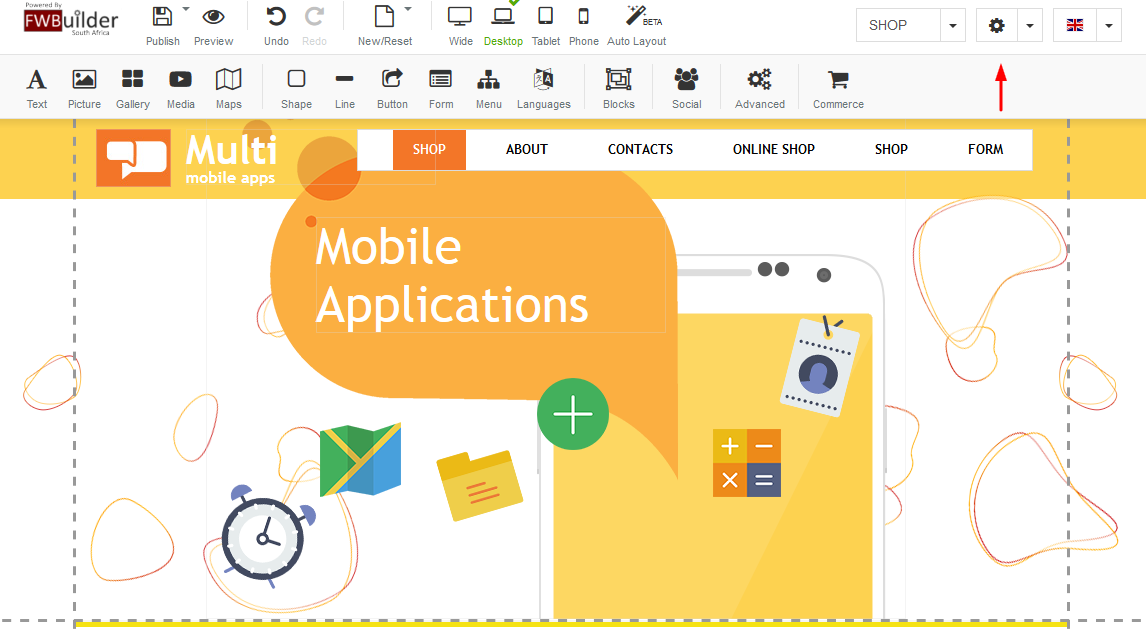
STEP 2:
Once the settings dropdown appears, you will need to click on the "Favicon" word: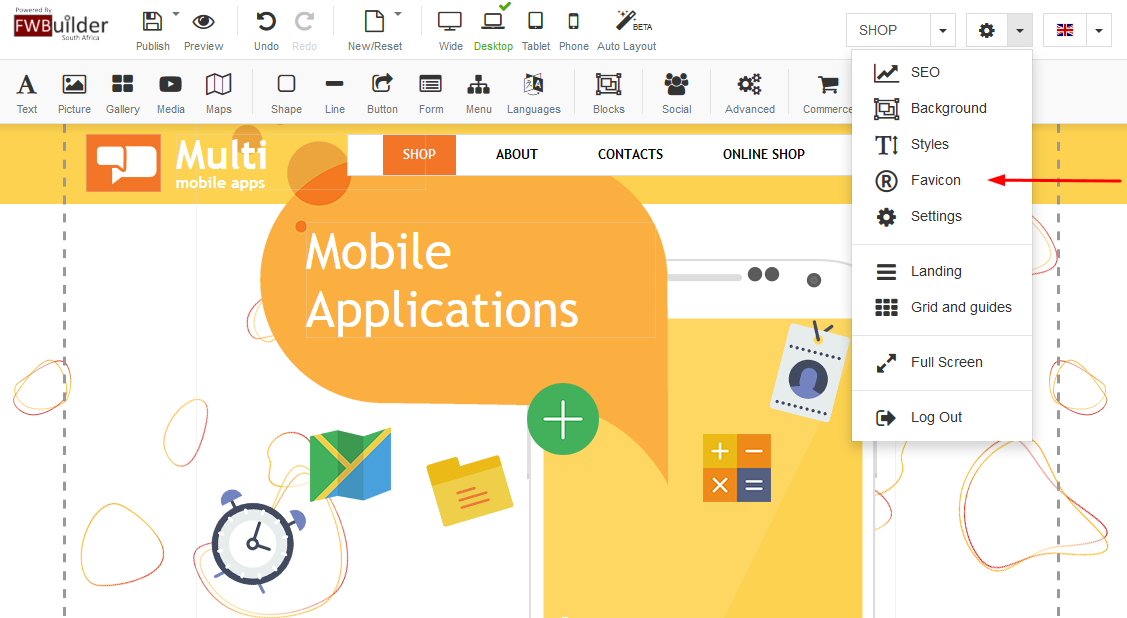
STEP 3:
A box will appear with the wording "Change Favicon" - here you will click on the pencil icon: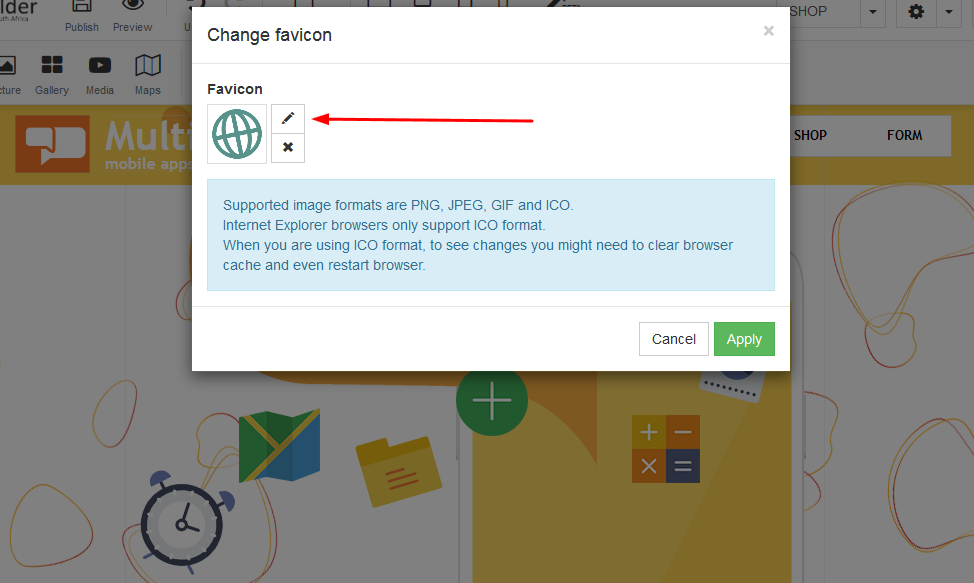
STEP 4:
A box will pop up called "Select Media" - Click on "Upload New Picture" and upload the favicon image of your choice (This image needs to be in jpeg/png format) - Remember this is an icon that will be displayed next to your domain name (Do not use an image with too many details):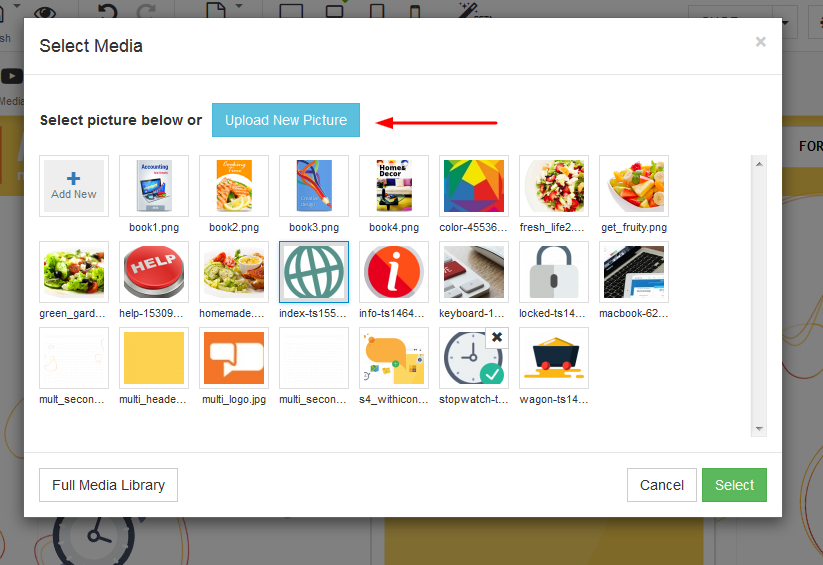
STEP 5:
Once your image has loaded, it will appear under your downloads as per below and the image will be highlighted with a blue border: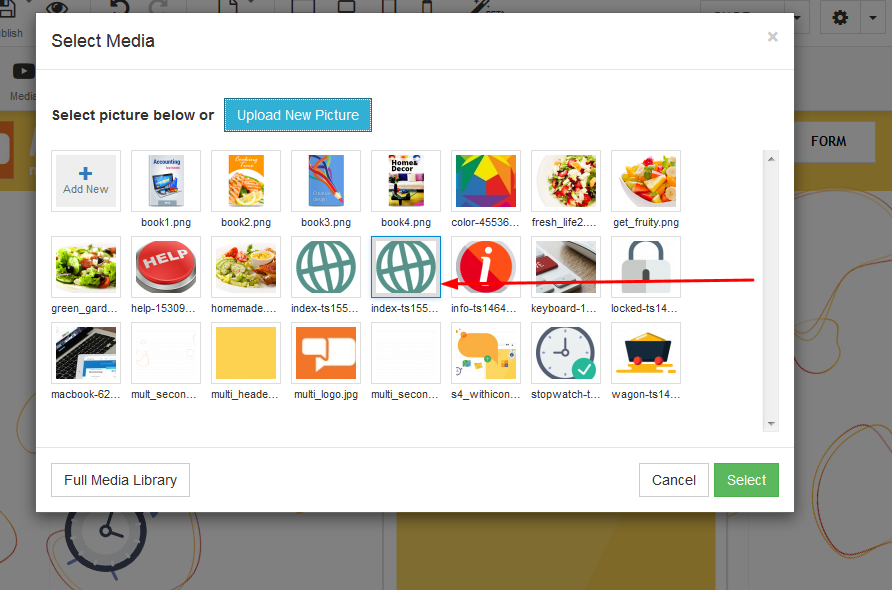
STEP 6:
Once you ready, you can click on apply: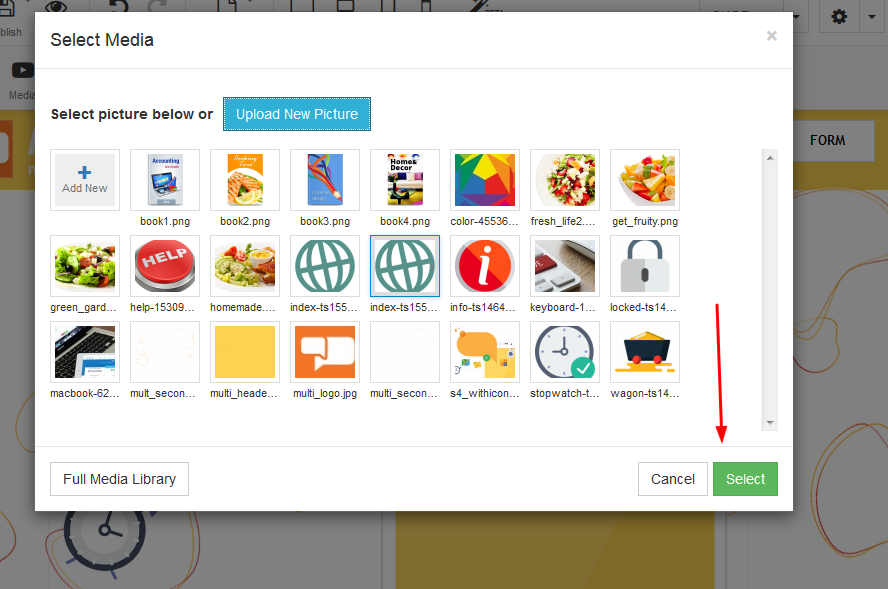
STEP 7:
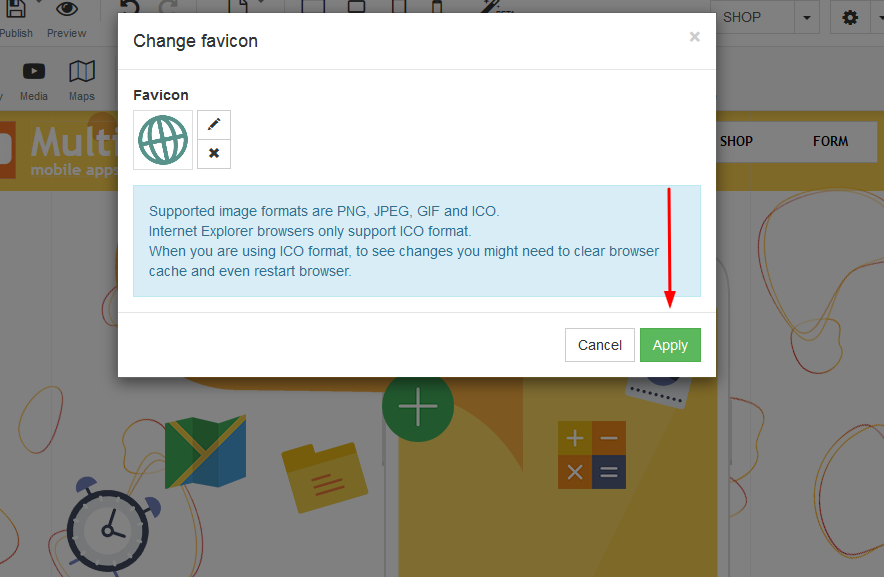
Once applied, your favicon will appear in the box under the word "Favicon":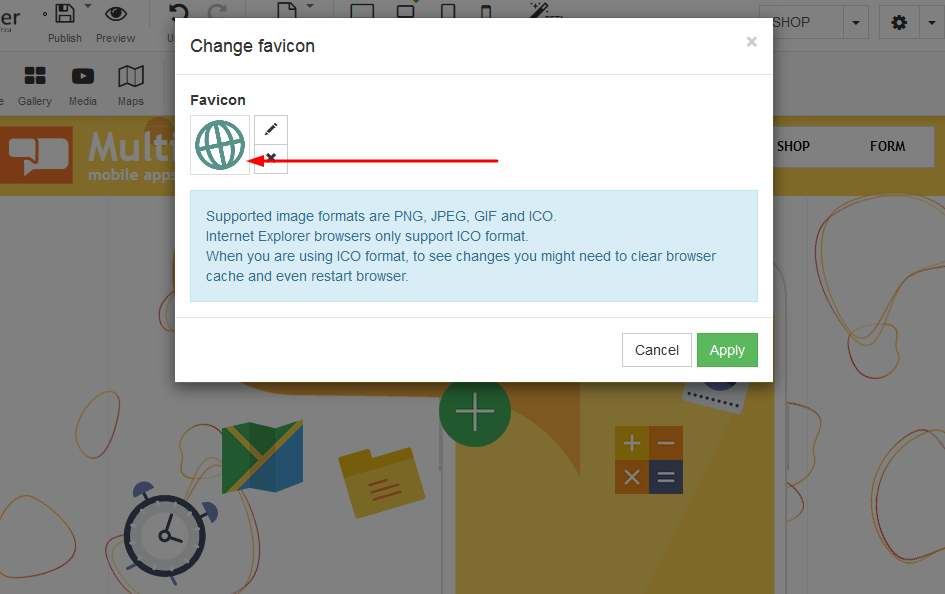
STEP 8:
Once you have completed this process, click Apply - Remember to always save your changes before moving onto any next steps you may wish to take: